
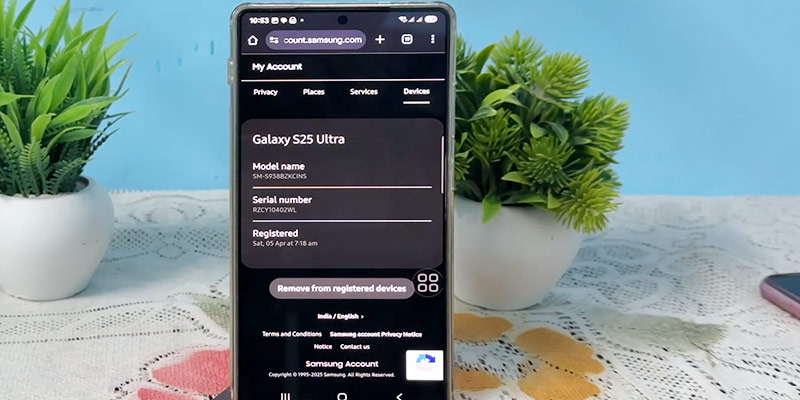
If you are wondering how to check IMEI number of Samsung devices, you are in the right place. The IMEI (International Mobile Equipment Identity) is a unique number that helps identify your smartphone for security and tracking purposes.
Whether you need it for warranty claims, unlocking, or verifying authenticity, knowing how to find your Samsung IMEI is essential.
Fortunately, Samsung phones offer several quick and easy methods to check this number, including dialing a code, using settings, or checking the device box.
In this guide, you will learn simple and effective ways to locate your IMEI number in seconds.
Shortcut for Finding Samsung IMEI Numbers
| Method | Best For… | Difficulty |
*#06# | Speed and convenience | Very Easy |
| Settings Menu | Copying/Pasting the number | Easy |
| Back of Phone | Dead battery / Won’t turn on | Medium (Hard to read) |
| SIM Tray | Dead battery / Back glass replaced | Medium |
| Google Dashboard | Lost or stolen phone | Easy (Needs Login) |
1. Check IMEI Number by Universal Dialer Code
The fastest and most common method across almost all mobile devices, not just Samsung, is using a USSD code. This method works regardless of your carrier or software version.
- Open the Phone app on your Samsung device.
- Tap on the Keypad tab.
- Dial
*#06#. - You don’t even need to press “Call.” A pop-up window will automatically appear on your screen showing your IMEI 1, IMEI 2 (if you have a dual-SIM or eSIM model), and the Serial Number (S/N).
Pro Tip: In 2026, most Samsung flagship models like the S26 series feature dual-connectivity. You will likely see two IMEI numbers. IMEI 1 is typically the primary identifier used for network registration.
2. Using the Settings Menu (The “Official” Way)
If you prefer navigating the interface, the Settings menu provides the most detailed look at your device’s identity.
- Swipe down from the top of your screen and tap the Settings (gear) icon.
- Scroll to the very bottom and tap About phone.
- Right at the top of the “About phone” page, you will see your phone name, model number, and your IMEI number(s).
- Copying the number: If you need to paste the number into a website or document, simply press and hold the IMEI number. A “Copy” bubble will appear, allowing you to save it to your clipboard.
3. Checking the Physical Hardware
What if your phone won’t turn on? Or what if the software is frozen? Samsung provides physical labels for these exact scenarios.
On the Back Glass
Look at the bottom area on the back of your phone. In very tiny, faint text, Samsung prints the IMEI and Serial Number. Because this text is etched to prevent wear, it can be hard to see.
- Tip: Shine a flashlight at an angle or use another phone’s camera to zoom in on the text.
In the SIM Card Tray
If you have a modern Galaxy device, the IMEI is often laser-etched directly onto the SIM card tray.
- Use a SIM ejector tool to pop out the tray.
- Look closely at the plastic or metal surface of the tray. The 15-digit number should be printed there.
4. How to Find IMEI Without the Phone (Lost or Broken Screen)
Losing your phone is stressful, but you can still retrieve the IMEI to give to the police or your service provider.
Method A: The Original Packaging
If you still have the box your Samsung Galaxy came in, look for a white barcode sticker. It usually lists the model name, Serial Number, and the IMEI.
Method B: Google “Find My Device”
If your Samsung was linked to a Google account:
- Go to the Google Find My Device website on a computer.
- Sign in with the Gmail account used on the phone.
- Select your lost device from the sidebar.
- Click the “i” (Information) icon next to the device name. A pop-up will reveal the IMEI.
Method C: Samsung Account (SmartThings Find)
Similar to Google, if you signed into a Samsung Account:
- Visit SmartThings Find.
- Log in and select your device.
- The device details will include the identifier numbers.
How to Check IMEI Number Samsung A32
To find the IMEI number on your Samsung Galaxy A32, you can use several methods. Since the A32 was a very popular mid-range device, it follows the standard Samsung protocols for identification.
Here are the four most effective ways to find it:
1. The Quickest Method: Universal Dial Code
This is the most reliable way and works on all Galaxy A32 variants (4G or 5G).
- Open the Phone app.
- Tap the Keypad.
- Type
*#06#. - A screen will instantly pop up showing your IMEI 1, IMEI 2 (if you use two SIMs), and your Serial Number (S/N).
2. Through the Settings Menu
If you want to be able to copy and paste the number, use the settings:
- Open Settings.
- Scroll to the bottom and tap About phone.
- Your IMEI will be listed clearly under the “Phone name” and “Model number” sections.
- Note: If you need to copy it, just long-press on the 15-digit number.
3. Checking the Physical Device
If your screen is broken or the phone won’t turn on:
- The Back Cover: Look at the very bottom of the back glass. In very small, light-grey print, the IMEI is etched into the surface. You may need a magnifying glass or a bright light to see it.
- The SIM Tray: Use a SIM tool to eject the tray on the left side of the phone. The IMEI is often printed in tiny text directly on the plastic SIM card holder.
4. If You Don’t Have the Phone
- The Original Box: If you still have the packaging, there is a white sticker on the side or bottom containing the barcode and the IMEI.
- Google Find My Device: Log into your Google Account on a computer, click on your Galaxy A32, and tap the “i” (information icon) next to the device name to reveal the IMEI.
How to Check IMEI Number Samsung S25 Ultra
Checking the IMEI (International Mobile Equipment Identity) on a Samsung Galaxy S25 Ultra is straightforward. There are several ways to find this 15-digit unique identifier, whether your phone is powered on or not.
1. The Dialer Code (Fastest Method)
This is the universal method for almost all mobile phones and works instantly.
- Open the Phone app.
- Tap the Keypad.
- Type
*#06#. - A screen will automatically pop up displaying your IMEI 1, IMEI 2 (for Dual SIM), and Serial Number.
2. Through System Settings
If you want to copy the number to your clipboard or view other device details simultaneously:
- Open Settings.
- Scroll to the very bottom and tap About phone.
- Your IMEI will be listed clearly under the device name and phone number.
- Tip: You can long-press the number to copy it.
3. Physical Inspection
If the screen is broken or the device won’t power on, you can still find the IMEI:
- The Back Panel: Samsung prints the IMEI and Serial Number in very small text on the lower back of the device. You may need a magnifying glass or good lighting to read it.
- The SIM Tray: Pop out the SIM card tray using a removal tool. The IMEI is often laser-engraved in tiny digits on the tray itself.
- Original Packaging: If you still have the box the S25 Ultra came in, the IMEI is printed on the white barcode sticker on the side or bottom.
4. Using Google “Find My Device”
If you don’t have the phone with you:
- Go to the Google Find My Device website on a computer.
- Sign in with the Google Account synced to the S25 Ultra.
- Click the “i” (Information) icon next to your device’s name. A popup will show the IMEI number.
Why the IMEI Number Matters?
You might wonder why you’d ever need this 15-digit string of numbers.
For mobile phones, the IMEI serves three major purposes:
- Blacklisting: If your phone is stolen, your carrier can “blacklist” the IMEI. This prevents the phone from connecting to any cellular network, essentially turning it into a paperweight for the thief.
- Unlocking: If you want to move from one carrier (like Verizon) to another (like T-Mobile), the new carrier will need your IMEI to check compatibility and process the unlock.
- Warranty & Repairs: When you call Samsung Support, they will ask for the IMEI to verify your warranty status and ensure they are sending the right parts for your specific hardware revision.
Final Thoughts
Keeping a record of your IMEI is one of those “boring” tech chores that pays off immensely when things go wrong. We recommend taking a screenshot of your IMEI screen and saving it to a secure cloud service or writing it down in a safe place at home.
Whether you’re rocking the latest Galaxy S26 or a classic S21, these steps ensure you’re never locked out of your device’s most vital information.